
Connect Your PS5 Controller to a PC
The Sony DualSense stands out as the premier PS5 controller, thanks to its innovative features, comfortable grip, and ergonomic design that enhance your PlayStation 5 gaming experience. Connecting it to a high-performance gaming PC might seem challenging, especially after the difficulties with the DualShock 4. Fortunately, the DualSense offers much better PC compatibility, placing it among the top PC controllers available. Below, we outline how straightforward the connection process is.
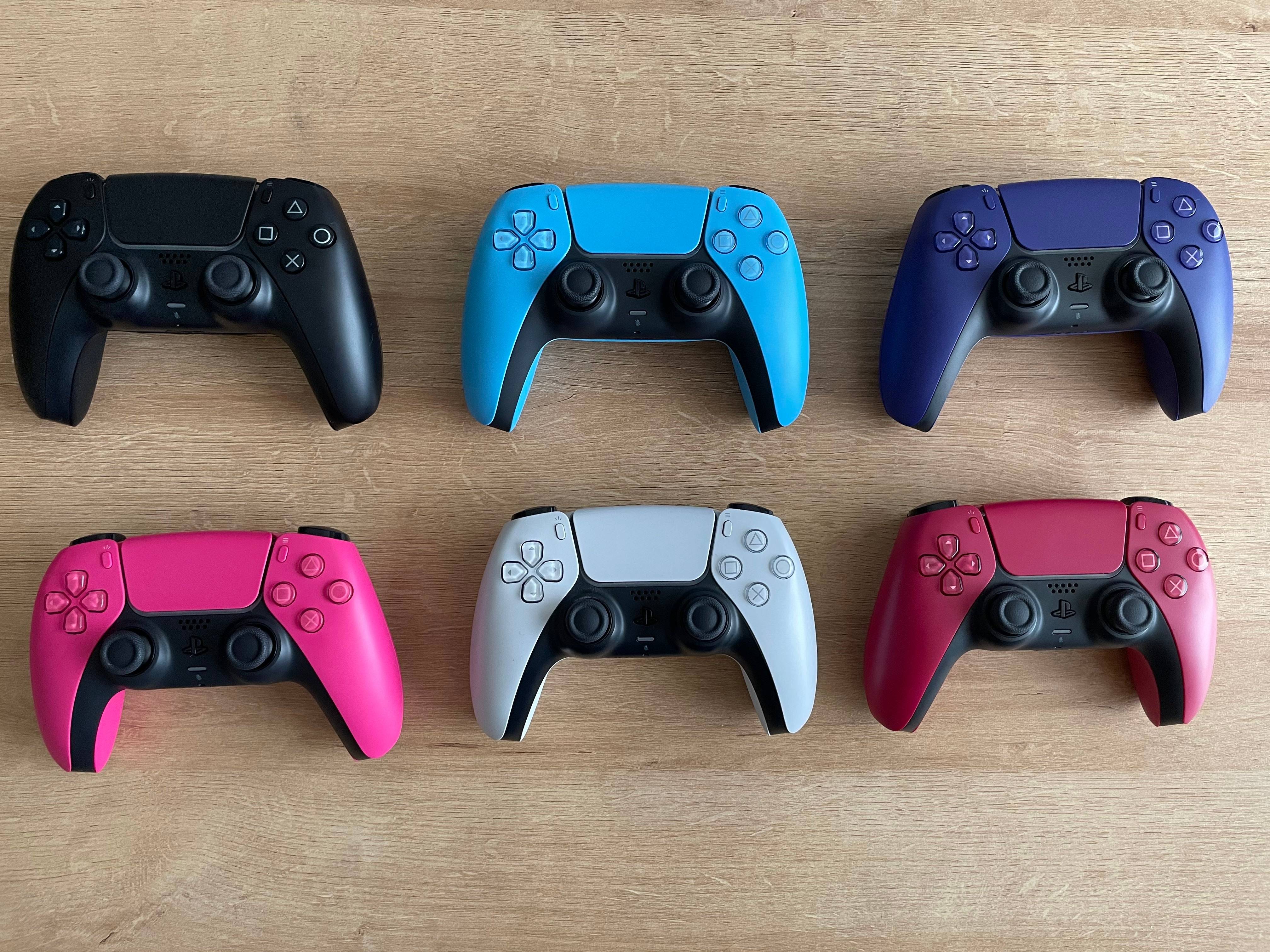
What You'll Need to Pair Your PS5 Controller with a PC:
A USB-C cable that supports data transfer
A Bluetooth adapter for your PC (if not built-in)
The main challenge often lies in ensuring you have the right equipment to link your DualSense controller to your PC. Since the standalone DualSense doesn't include a USB cable, and not all PCs come with Bluetooth, you have two options. You can use a USB-C cable that supports data transfer—note that some budget cables only provide power. Choose a USB-C to USB-C cable if your PC has a USB-C port, or a USB-C to USB-A cable if you're connecting via standard rectangular USB ports.
If your PC lacks built-in Bluetooth, you can easily add it. Various Bluetooth adapters are available, including PCIe cards that install inside your computer and compact USB dongles that plug into any open USB port.
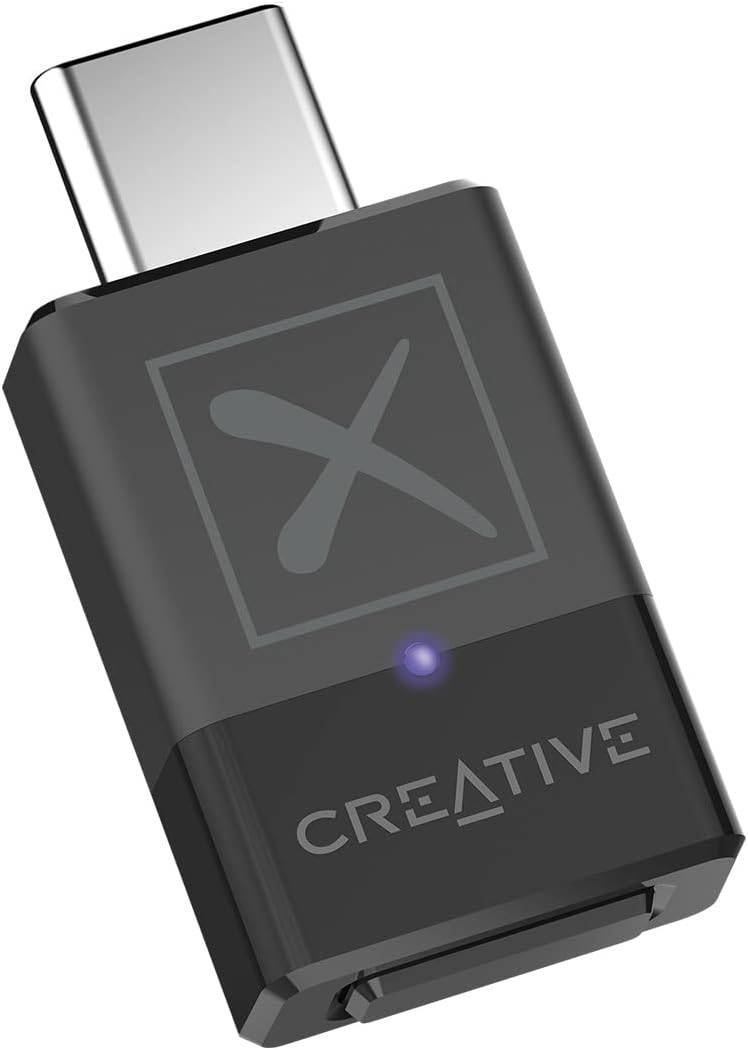
Our Top Pick
Creative BT-W5 Bluetooth Transmitter
View on Amazon
How to Connect Your PS5 Controller to a PC via USB
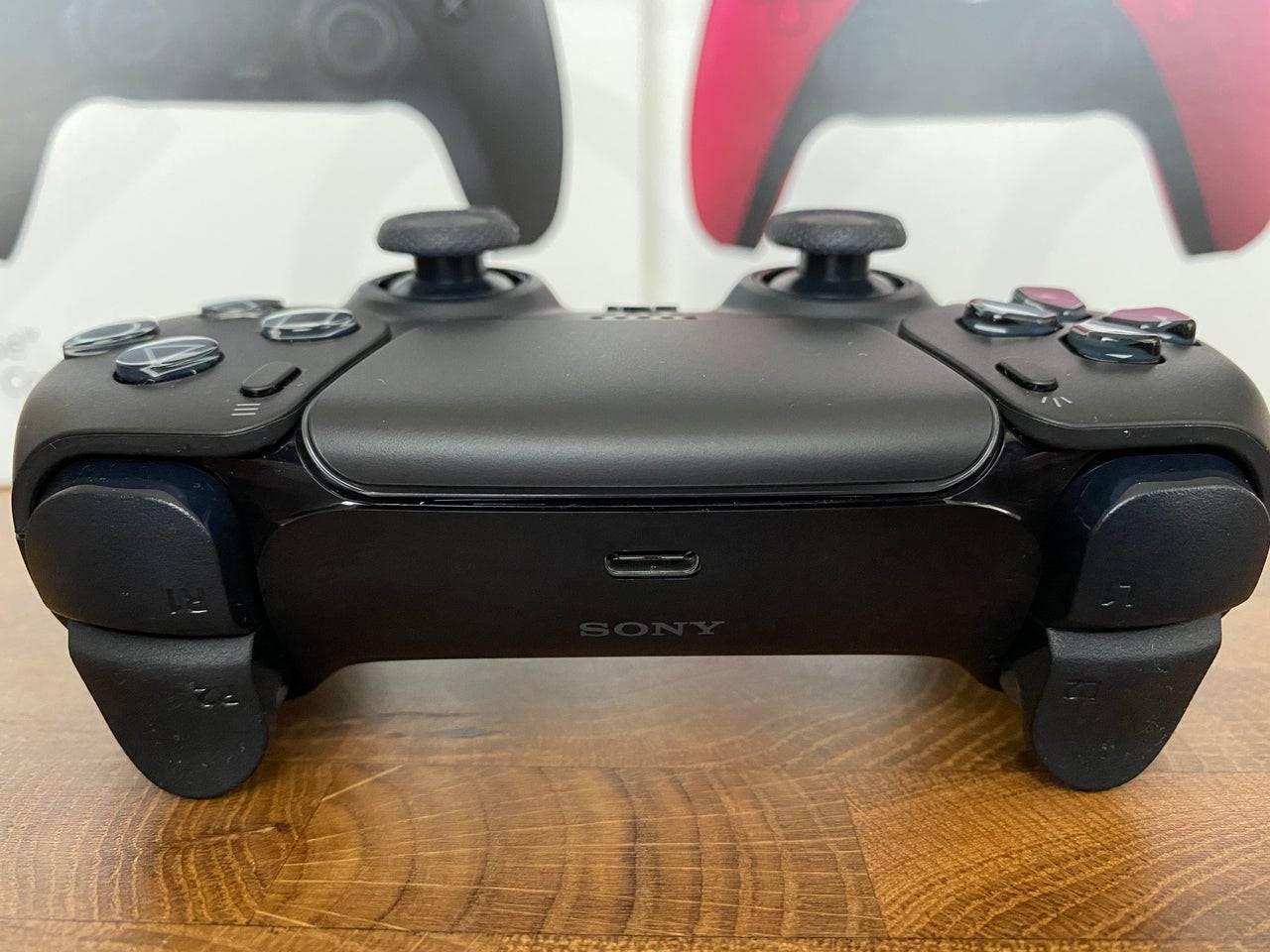
Connect one end of your USB cable to an available port on your PC
Plug the other end into the USB-C port on your DualSense controller
Wait for Windows to detect the DualSense controller and recognize it as a gamepad
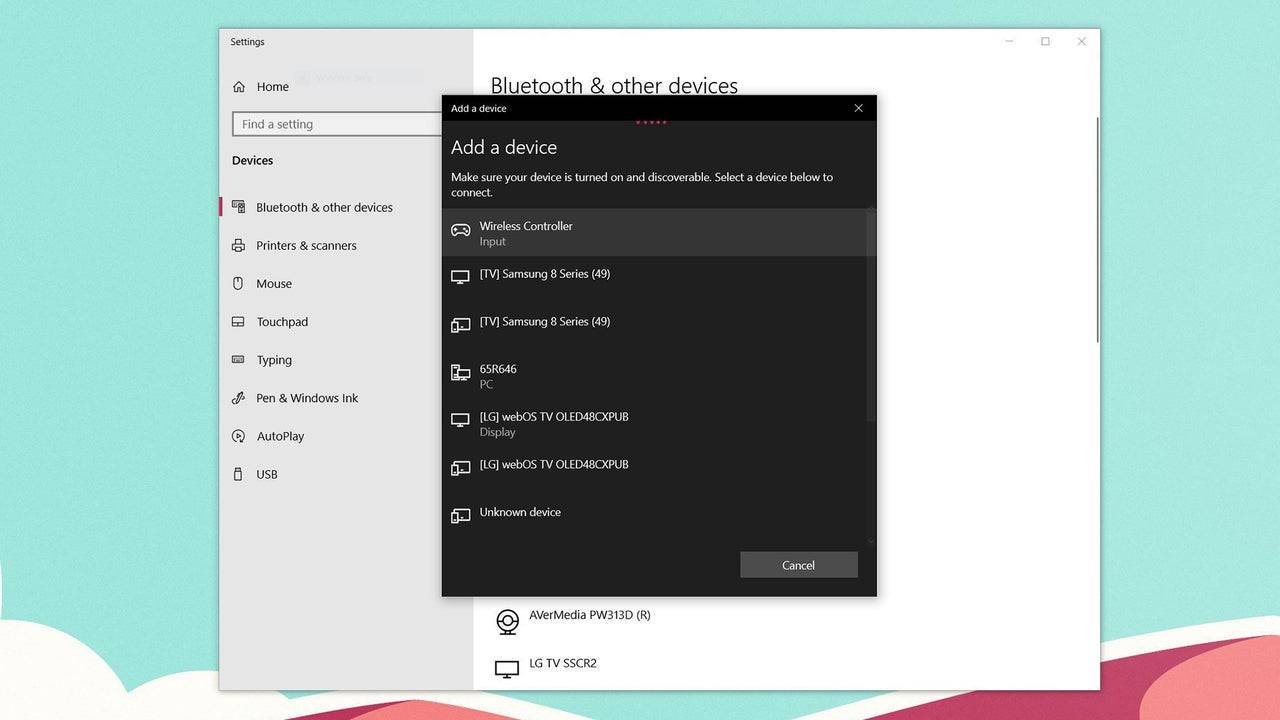
How to Pair Your PS5 DualSense Controller with a PC via Bluetooth
Open your PC's Bluetooth settings (Press the Windows key, type "Bluetooth," and choose Bluetooth & other devices from the results)
Click Add Bluetooth or other device
Select Bluetooth from the options in the pop-up window
With your DualSense controller turned off, simultaneously press and hold the PS Button and the Create button (located near the D-Pad) until the light bar below the touchpad starts flashing
On your PC, choose your DualSense controller from the list of discoverable Bluetooth devices
-
The director of the upcoming Elden Ring Movie, Alex Garland, is currently on his seventh playthrough of FromSoftware's epic fantasy RPG, and has shared which boss he found to be the most challenging to defeat.Speaking to IGN ahead of the release ofAuthor : Mia Oct 18,2026
-
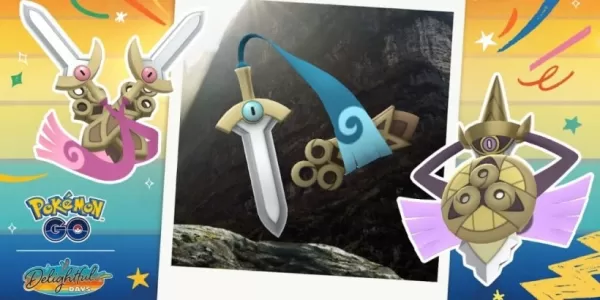 The event runs from July 22nd to 27th Honedge, Doublade, and Aegislash make their debut Earn plenty of rewards from other tasks If you’ve just wrapped up reading about time distortions and catching Hisuian Zorua, Pokémon Go has already revealed theAuthor : Logan Oct 18,2026
-
 Goods Merge - Jigsaw PuzzlesDownload
 -
 Mix Story: Tricky PuzzlesDownload
 -
 Swag Bucks Answer-Casino Slot MachineDownload
 -
 MERGE INSIGNIA 2048Download
 -
 Screw Nuts and Bolts PuzzleDownload
 -
 Monster Puzzle AdventureDownload
 -
 Troll Face Quest: Horror 3Download
 -
 Find Them AllDownload
 -
 Find a deliciousDownload
 -
 Soda Water Sort Puzzle: ColorDownload





![Taffy Tales [v1.07.3a]](https://imgs.ehr99.com/uploads/32/1719554710667e529623764.jpg)



- Roblox Promos & Codes: Ultimate January 2025 Guide
- Black Ops 6 Zombies: How To Configure The Summoning Circle Rings on Citadelle Des Morts
- Roblox: Latest DOORS Codes Released!
- Harvest Moon: Lost Valley DLC and Preorder Details Revealed
- Silent Hill 2 Remake Coming to Xbox and Switch in 2025
- Free Fire: Full Guide to Active & Passive Abilities